How to Save An Email As a PDF (and what actually happens to attachments)
I tested saving an email as a PDF in Gmail, Outlook, Apple Mail, and iPhone Mail. Steps for each platform, plus why attachments never make it into the file.
 Michael Doyle8 min read
Open the email, click Print (or File > Print), then choose Save as PDF or Microsoft Print to PDF as the destination. This works in Gmail, Outlook, and Apple Mail. On iPhone, tap Print, then pinch open the preview to turn it into a PDF you can share.
I ran this same task in Gmail, new Outlook, classic Outlook, Apple Mail, and the iPhone Mail app to check whether the steps still match what each company documents. They mostly do. What none of them mention up front is what doesn't survive the conversion, which is covered below, too.
What this works on, and what it doesn't
Works on, free, no extra software:
Gmail, in a browser or the Gmail app
Outlook.com and new Outlook for Windows
Classic Outlook (2016 through Microsoft 365)
Apple Mail on macOS
The Mail app on iPhone and iPad
Doesn't do, on any of the above:
Bundle the original attachment files inside the PDF as clickable, downloadable files
Produce a PDF from an email sent in Gmail's confidential mode, since that mode blocks printing on purpose
Combine several emails into one PDF without extra steps (Apple Mail is the one exception, covered below)
In Gmail or any other webmail
This is the method behind almost every "save as PDF" button you've seen, because Gmail, Outlook.com, and Yahoo Mail all route it through your browser's print dialog rather than a built-in export button.
Open the email you want to save.
Click More (the three dots) in the top right of the message, then click Print. Gmail also has a Print all option if the conversation has several messages in it.
Wait for the print preview to load in a new tab.
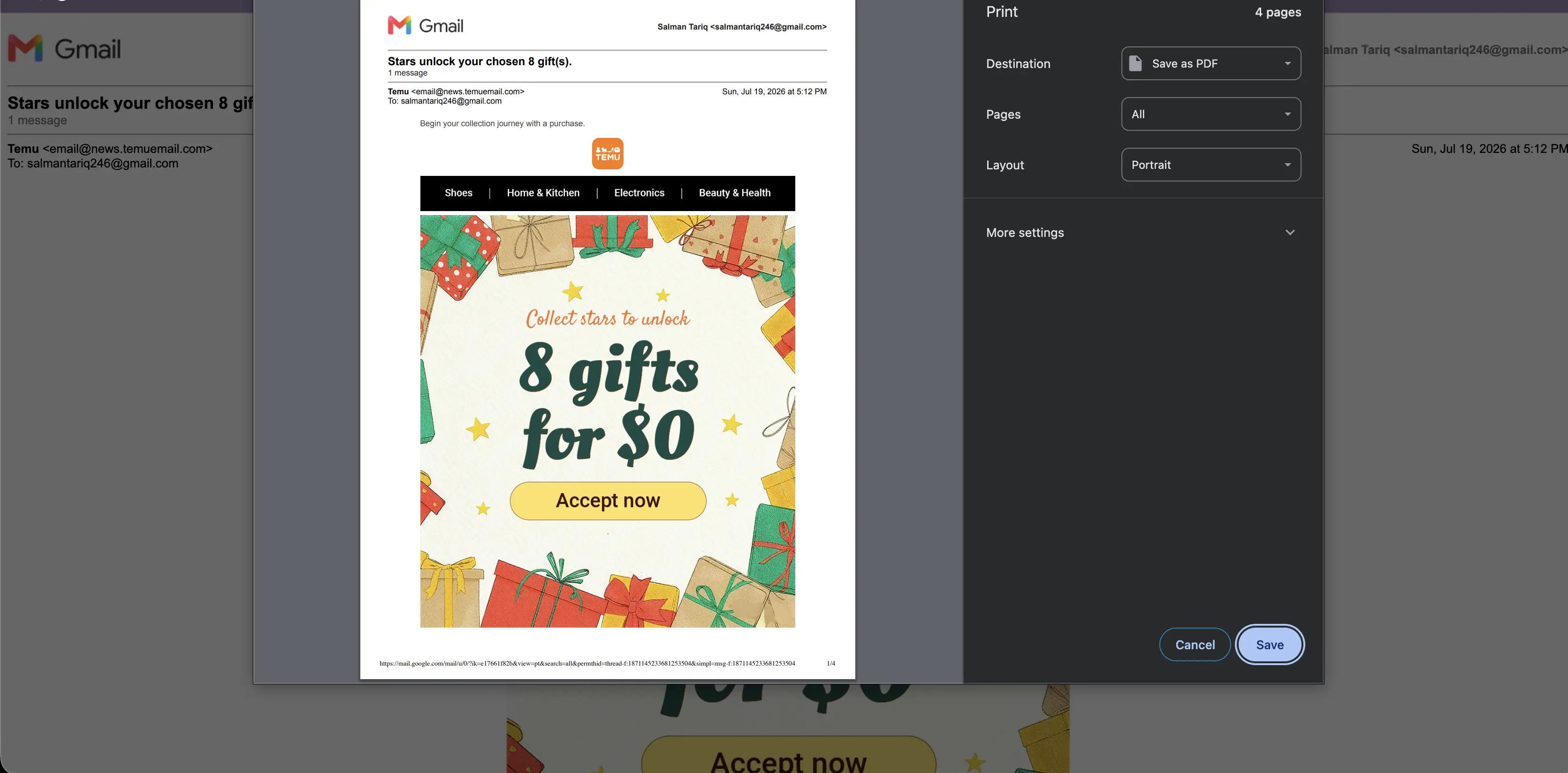
Click the Destination field and change it from your physical printer to Save as PDF.
Click Save, pick a folder, and confirm.
To check it worked, open the file you saved and confirm that the subject line, sender, and body all appear as you expect.
In new Outlook and classic Outlook for Windows
Outlook has never had a direct "save as PDF" button. Microsoft's own help page puts it plainly: "New Outlook doesn't include PDF as one of the default Save as types." Classic Outlook is the same, so both send the job through the Microsoft Print to PDF utility that ships with Windows 10 and 11.
New Outlook:
Open the message.
Select More actions, then Print, then Print again.
Choose Microsoft Print to PDF from the printer dropdown.
Select Print, then pick a folder and file name in the Save Print Output As box.
Read Also: 12 best Lusha Alternatives in 2026 (now that phone credits cost double)
Classic Outlook:
Open the message.
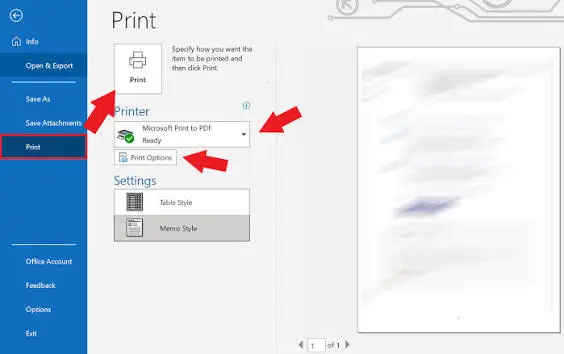
Select the File tab, then Print.
Choose Microsoft Print to PDF from the printer dropdown.
Select Print, then pick a folder and file name.
Confirm the save by reopening the PDF from that folder. If Microsoft Print to PDF isn't in either dropdown, it's a Windows feature, not an Outlook one. It gets added under Settings > Apps > Optional features.
In Apple Mail on a Mac
Apple Mail is the one client here with an actual export command, not just a print dialog wearing a PDF hat. Apple's own support page confirms the steps below still match the current version of Mail.
Open the message, or select several at once.
Click File in the menu bar.
Select Export as PDF.
Choose a save location and click Save.
Selecting multiple messages before exporting saves each one as its own numbered PDF in the folder you pick, which is the closest any of these apps gets to a native batch export.
To confirm, check the destination folder for one PDF per message you selected.
On an iPhone or iPad, in Mail
Open the email.
Tap the Reply arrow at the bottom of the screen.
Tap Print.
Pinch open (spread two fingers on) the thumbnail preview at the bottom of the screen until it fills the display. This turns it into a live PDF, not just a picture of one.
Tap the Share icon in the top right corner.
Choose Save to Files, or share it directly to Mail, Messages, or another app.
The Gmail app on iPhone and Android uses the same shape: open the email, tap Print from the menu, then choose Save as PDF from the printer list that appears.
What actually ends up in the PDF
This is the part that's easy to miss until you open the file and something's not there. Across every method above, attachments stay outside the PDF. A message with a spreadsheet or photo attached will show the file name in the PDF, sometimes not even that, but the file itself has to be downloaded and saved on its own.
Inline images, the kind pasted directly into the body of an email, print fine and show up in the PDF. Images sent as separate attachments generally don't, or come through blurry if they do. If you need both the message and its files in one place, save the attachments first, then merge them with the email PDF afterward using any PDF merge tool.
Read Also: How to Encrypt Email in Outlook (Windows, Mac, and web)
Which method to use
Method | Works on | Requirement | What you get |
|---|---|---|---|
Browser print dialog | Gmail, Outlook.com, Yahoo, and most webmail | A browser, no install | One PDF per email, attachments excluded |
Microsoft Print to PDF | New and classic Outlook for Windows | Windows 10 or 11 | One PDF per email, attachments excluded |
Export as PDF | Apple Mail on macOS | macOS, built in | One PDF per email, or one per message in a bulk selection |
Mail app print and pinch | iPhone and iPad | iOS, built in | One PDF per email, attachments excluded |
Common problems
Save as PDF or Microsoft Print to PDF isn't in the list. On Windows, it's a missing optional feature rather than a broken one. Go to Settings > Apps > Optional features and add Microsoft Print to PDF, then reopen the print dialog.
Print or Save as PDF is greyed out entirely. Gmail's own help documentation confirms the sender may have turned on confidential mode, which blocks printing of both the message text and any attachments. There's no workaround on your end; you'd need the sender to resend it outside confidential mode. A Gmail Help Community thread covers the same issue from other users who ran into it while trying to print a locked-down message.
Part of the email is cut off in the PDF. This is usually the print layout, not the save step. In the print preview, turn off headers and footers, and check that "fit to page" or a similar scaling option is turned on rather than "actual size."
Only the attachment prints, not the email body, or the other way around. Print the message and its attachment as two separate jobs. Open the attachment first, print or save that on its own, then go back and print the email body by itself.
FAQ: How to Save An Email As a PDF
Does saving an email as a PDF include the attachments? No, not as files you can open from inside the PDF. The email body, including any inline images, saves fine, but attached files need to be downloaded and saved on their own.
Can I save an email as a PDF for free? Yes. Every method above uses tools already built into your browser, your operating system, or the mail app itself. Nothing here requires a paid plan or extra software.
Can I save several emails as one combined PDF? Apple Mail can do it directly if you select multiple messages before choosing Export as PDF, though it still creates one file per message rather than merging them. For a single combined document from Gmail or Outlook, save each email as its own PDF first, then merge the files with a PDF merge tool.
Why does my saved PDF look different from the actual email? Some layouts, background colors, and fonts don't carry over cleanly through a print dialog. If it looks off, check the print preview's background graphics setting before saving, since that's usually where the difference comes from.
One last check
Before you file the PDF away or send it on, open it once and skim it against the original. Confirm the sender, date, and subject line are all there, and if the email had an attachment you care about, make sure you saved that separately. The PDF only ever captures what was printable on the page, not what was riding alongside it.