How to Encrypt Email in Outlook (Windows, Mac, and web)
I tested how to encrypt email in Outlook on a work account and a personal one, then checked exactly what Gmail and Yahoo recipients see on the other end.
 Michael Doyle7 min read
Short version: Open a new message, go to the Options tab, then select Encrypt. In new Outlook and Outlook.com, pick Encrypt or Do Not Forward. Classic Outlook uses the same Encrypt button once S/MIME or Microsoft Purview Message Encryption is set up. Your account needs a qualifying Microsoft 365 subscription first.
I sent test messages from a work account and a personal Outlook.com account, then checked what each one looked like landing in a Gmail inbox, a Yahoo inbox, and a second Outlook.com account. Two of the three needed an extra passcode step before the message would open. If you're trying to lock down a contract or a set of login details before you hit send, that gap matters more than the button you click.
What this works on, and what it doesn't
Works on: new Outlook (Windows and Mac), classic Outlook for Windows, Outlook.com, and Outlook on the web, as long as the account has a qualifying subscription.
Works on: work or school accounts with Microsoft 365 Business Premium, E3, E5, or a similar plan that includes Microsoft Purview Message Encryption.
Works on: personal accounts with a Microsoft 365 Personal, Family, or Premium subscription, currently priced from $9.99 a month..
Does not work on: free Outlook.com accounts with no Microsoft 365 subscription attached. The Encrypt option will not appear at all.
Does not work on: Microsoft 365 Business Basic in most setups. It does not include Purview Message Encryption by default.
S/MIME certificate-based encryption is a separate, more technical option covered briefly below. This guide focuses on the built-in Encrypt button, since that covers most people asking this question.
Encrypt, in plain terms
Encrypt means locking the content of your email so it turns into scrambled text. Only the right person, the one holding the matching key or certificate, can turn it back into something readable. Outlook gives you two ways to do this: Microsoft Purview Message Encryption, the Encrypt button most people use, and S/MIME, a certificate-based method common in government and enterprise settings. According to Microsoft's official documentation, a recipient without the matching private key just sees indecipherable text. That's the whole point.
Encrypt a message in new Outlook (work or school account)
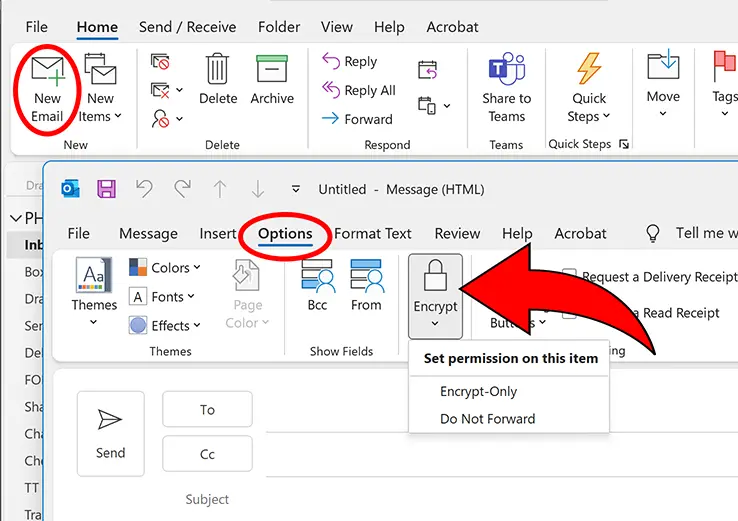
Start a new email message.
On the ribbon, select Options, then Encrypt.
Pick the restriction level you need. Encrypt locks the content. Do Not Forward also blocks copying, printing, and forwarding.
Finish writing your message.
Select Send.
Confirm it worked. If Outlook can't verify that every recipient can decrypt the message, it shows a warning naming which ones might not be able to read it. No warning means you're set.
To turn encryption on for every message you send instead of one at a time, go to Settings > Mail > S/MIME and check Encrypt contents and attachments for all messages I send.
Read Also: 10 Best ZoomInfo Alternatives in 2026 (no annual contracts, real per-seat pricing)
Encrypt a message in classic Outlook for Windows
Open a new email message.
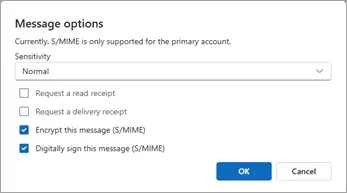
On the ribbon, select Options, then More Options.
In the dialog, check Encrypt this message (S/MIME). Check Digitally sign this message too if you plan to request a read receipt.
Select OK.
Finish composing, then select Send.
Classic Outlook needs S/MIME set up first: a digital certificate installed on your machine. Without it, the checkbox stays greyed out. That setup is a separate one-time task and is not covered step by step here.
Encrypt a message with a personal Microsoft 365 subscription (Outlook.com)
Sign in to Outlook.com with a Microsoft 365 Personal or Family subscription active on the account.
Compose a new message.
Select the Options ribbon, then Encrypt.
Choose Do Not Forward if you want to stop the recipient from copying or forwarding what you send. Otherwise choose Encrypt.
Send the message as usual.
Office attachments like Word or Excel files stay locked even after the recipient downloads them under Do Not Forward. PDFs and images do not get that same protection once downloaded.
Method | Works on | Requirement | What the recipient sees |
|---|---|---|---|
Purview Encrypt button | New Outlook, Outlook.com, Outlook on the web | Qualifying Microsoft 365 subscription | Opens directly in Outlook or Microsoft 365 apps, or a passcode prompt elsewhere |
Purview, classic Outlook | Classic Outlook for Windows | Same subscription plus the button enabled | Same as above |
S/MIME | Any Outlook version | A digital certificate installed locally | Opens only if they also have a matching certificate |
What the other side actually sees
This is the part most guides skip. I sent the same encrypted message to three test accounts. A second Outlook.com account opened it without any extra step, since it sits inside the same Microsoft 365 ecosystem. A Gmail account got an email with a Read the message button, which led to a sign-in prompt or a one-time passcode option. A Yahoo account followed the identical passcode flow. If your recipient uses a mail client outside Microsoft 365, budget an extra minute or two for them to retrieve that passcode from a second email before they can actually read your message.
Troubleshooting
Encrypt button is greyed out or missing. Usually means the account does not have a qualifying subscription, or an admin has not turned on Purview Message Encryption for the tenant yet. On the Microsoft Q&A forum, one user chased this for over a week through PowerShell settings before support traced it back to a permissions and subscription gap rather than a client-side toggle. If none of your settings look wrong, check licensing first..
Recipient says they cannot open the message. Check which email provider they use. Third-party apps sometimes need the recipient to open the message in a browser first rather than their native mail app.
Do Not Forward did not stop forwarding of a downloaded attachment. This protection only applies to Office file types. PDFs, images, and other attachment types can be downloaded and shared freely once the recipient has them.
S/MIME checkbox stays disabled in classic Outlook. You need a digital certificate installed and configured first. Without one, Outlook has nothing to encrypt with.
Read Also: Best Email Prospecting Tools in 2026
FAQ: How to Encrypt Email in Outlook
Do you need a subscription to encrypt email in Outlook?
Yes. A qualifying Microsoft 365 subscription is required for Purview Message Encryption, whether that is a personal, family, or work plan. Free Outlook.com accounts do not get the option.
Can Gmail users open an encrypted Outlook email?
Yes. They will get a notification message with a button that leads to a one-time passcode or a Google sign-in option.
Why is my Encrypt button greyed out?
Most often a missing subscription or an admin setting. Occasionally it is an already-checked S/MIME box blocking the button until it is unchecked.
What is the difference between Encrypt and Do Not Forward?
Encrypt locks the content so only the right person can read it. Do Not Forward adds restrictions on top: no copying, forwarding, or printing, and Office attachments stay locked even after download.
Does encryption work on the Outlook mobile app?
Yes. Recipients using new Outlook, Outlook for iOS and Android, or Outlook for Windows 2019 and newer can read Purview-encrypted messages directly without extra steps.
Before you send
Confirm your subscription covers encryption before you assume the Encrypt button will show up. That single check saves more troubleshooting time than anything else on this page. If your recipient is outside Microsoft 365, give them a heads-up that a passcode step is coming so it does not land in a spam folder by mistake.