

LinkedIn shows a member's email only if that member chose to share it, and the default setting shows it to direct connections only.
When Contact info is empty, there is no address on the page to read. You find it from the person's name and company, or guess it from the company's format and verify it before you send.
Which route fits your situation
Your connection to the person decides which route works and how much risk it puts on your own account. How to find someone's email address covers the other methods, including search operators and company websites. This guide stays on the LinkedIn side of the task.
The table matches four common situations to a starting route.
Your situation | Start with | Risk to your LinkedIn account |
|---|---|---|
You are connected to the person | Contact info, then the connections export | Normal use of your account |
Not connected, a few people a week | A lookup from name and company, no extension | Low, because the lookup runs outside LinkedIn |
Volume prospecting as an SDR or agency | A lookup or extension, plus verification | Real, because LinkedIn prohibits extensions that scrape or automate |
Recruiter who wants personal addresses | A LinkedIn message first, since most finders return work addresses | Normal use of your account |
What you need before you start
You need a LinkedIn account you can sign in to, and a free one is enough for every route below.
You need the person's full name, current company, and profile URL, copied from their profile.
You need a way to check an address before you send.
Phone numbers and personal Gmail addresses are outside this guide.
How to find an email when you are connected
Connections are the group most likely to show an address, because the default setting shares it with them. Two places hold it: the Contact info panel on the profile, and your own connections export.
Read the email in Contact info
Steps:
Open the connection's profile while signed in.
Click Contact info under their name and headline.
Look for an Email line in the panel.
Confirm: An address appears only when the member allows it, so a panel with just a profile link means they haven't.
How each visibility setting changes what you see
The member, not you, picks who can see their email, and the LinkedIn Help email page describes each choice.
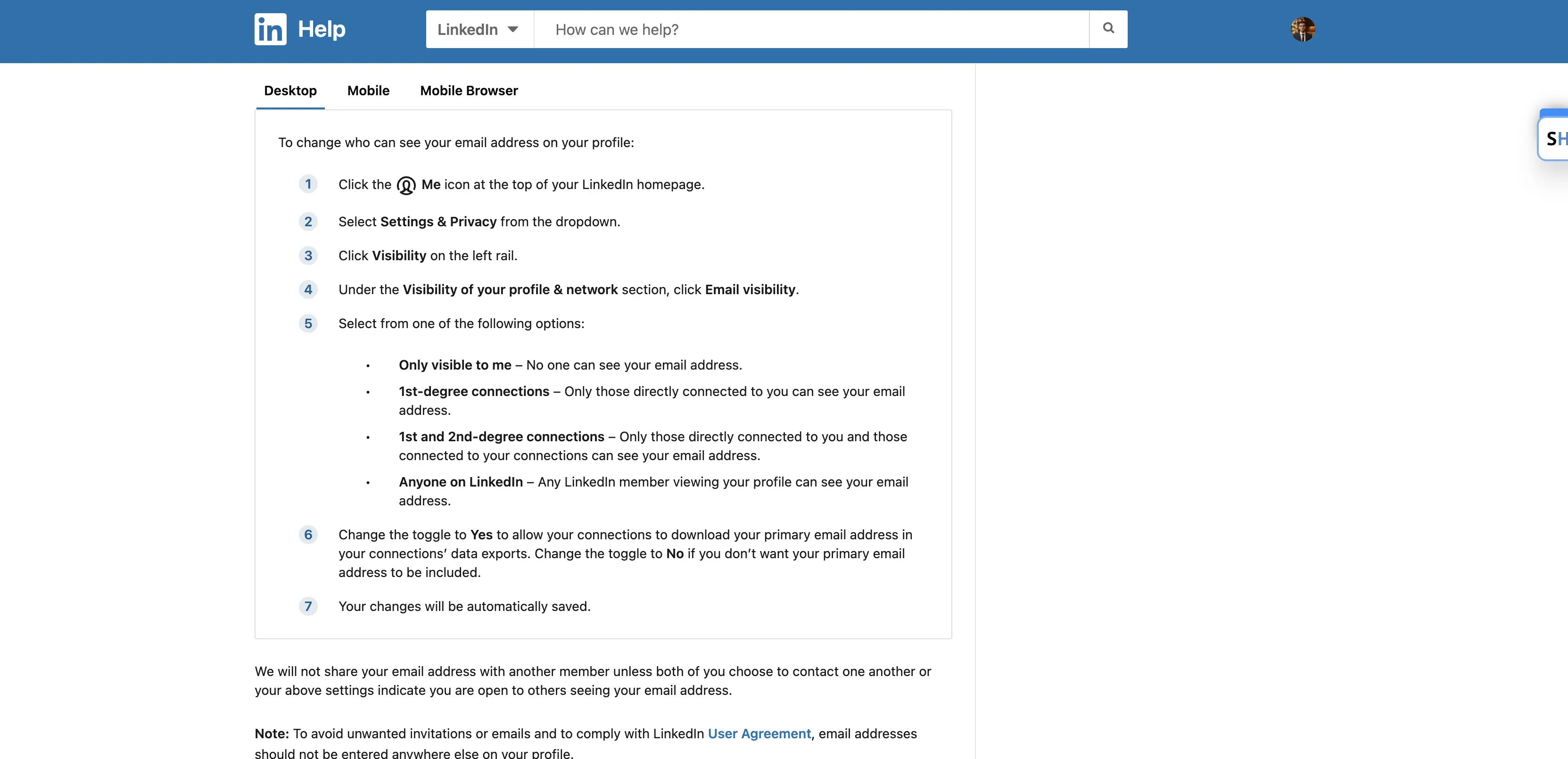
The default setting shows the address to direct connections only, which is why a stranger's Contact info is usually empty. The table shows what each setting means for the person looking.
Member's setting | Who can see the address | What you see |
|---|---|---|
Only me | Nobody else | Nothing in Contact info |
1st degree connections (default) | Direct connections | An address only if you are connected |
1st and 2nd degree connections | Direct connections and their connections | An address if you share a connection |
Anyone | Every LinkedIn member | An address even if you are not connected |
The address shown is the one the member registered, so it can be a personal inbox. Check it before you use it for work outreach. The same setting controls who can see your own address.
Export your connections and why some emails are blank
LinkedIn's connections export page covers the file, and an email appears in it only for connections who allow it. Only direct connections are included.
Steps:
Open Settings & privacy, then Data privacy.
Click Get a copy of your data and select Connections.
Click Request archive and download the file from the link LinkedIn sends.
Open the file and find the Email Address column.
Confirm: Blank cells mean the connection hasn't allowed their address in exports, so use the not connected route for those people.
How to find an email when you are not connected
Without a connection, Contact info shows an address only when the member chose a wider setting. A lookup works from public details instead.
How a LinkedIn email finder gets the address
A finder can't read an address the member hid. It takes the name and company from the public profile, then does one of two things.
It matches the person against records the vendor already holds, or it builds the address from the company's usual format and checks whether that mailbox exists.
The first is a lookup and the second is a guess, and they carry different risk.
Label every result found or guessed
Say the profile gives the first name Dana, the last name Reyes, and the company domain example.com. This is an invented example.
A finder that guesses would test dana.reyes@example.com and dreyes@example.com, then run a check on each. The table shows how to label what comes back.
Label | Where the address came from | Before you send |
|---|---|---|
Found on the profile | The member's own Contact info | Confirm it is a work address |
Found in a lookup | A record the vendor holds | Run a verification check |
Guessed from a pattern | Built from the company's format | Send only if the check passes |
A guessed address can pass a check and still reach someone other than your target, so keep the label in your list.
Find an email from a LinkedIn profile without an extension
Steps:
Copy the person's full name, company and profile URL from LinkedIn.
Find the company's website domain.
Enter the name and domain, or the profile URL if the tool accepts one, in a lookup tool on its free plan.
Record the result with its found or guessed label.
Confirm: The lookup ran outside LinkedIn, so no extension touched your account.
Do LinkedIn's rules allow an email finder extension, and what happens to your account?
A LinkedIn email finder extension is the fastest route and the one with the most account risk. Most run as a Chrome extension that reads the profile you have open.
What LinkedIn's help page says
LinkedIn's Help page on prohibited extensions says third party browser extensions that scrape or automate activity break Section 8.2 of its User Agreement.
Members who use them risk a restricted or closed account, and the tool can stop working without notice. The page names no daily limit.
Why vendor limits disagree
Vendors fill that gap with their own numbers. The figures below come from each vendor's own page, read on 1 October 2026, and they run from 150 to 1,800 prospects a day.
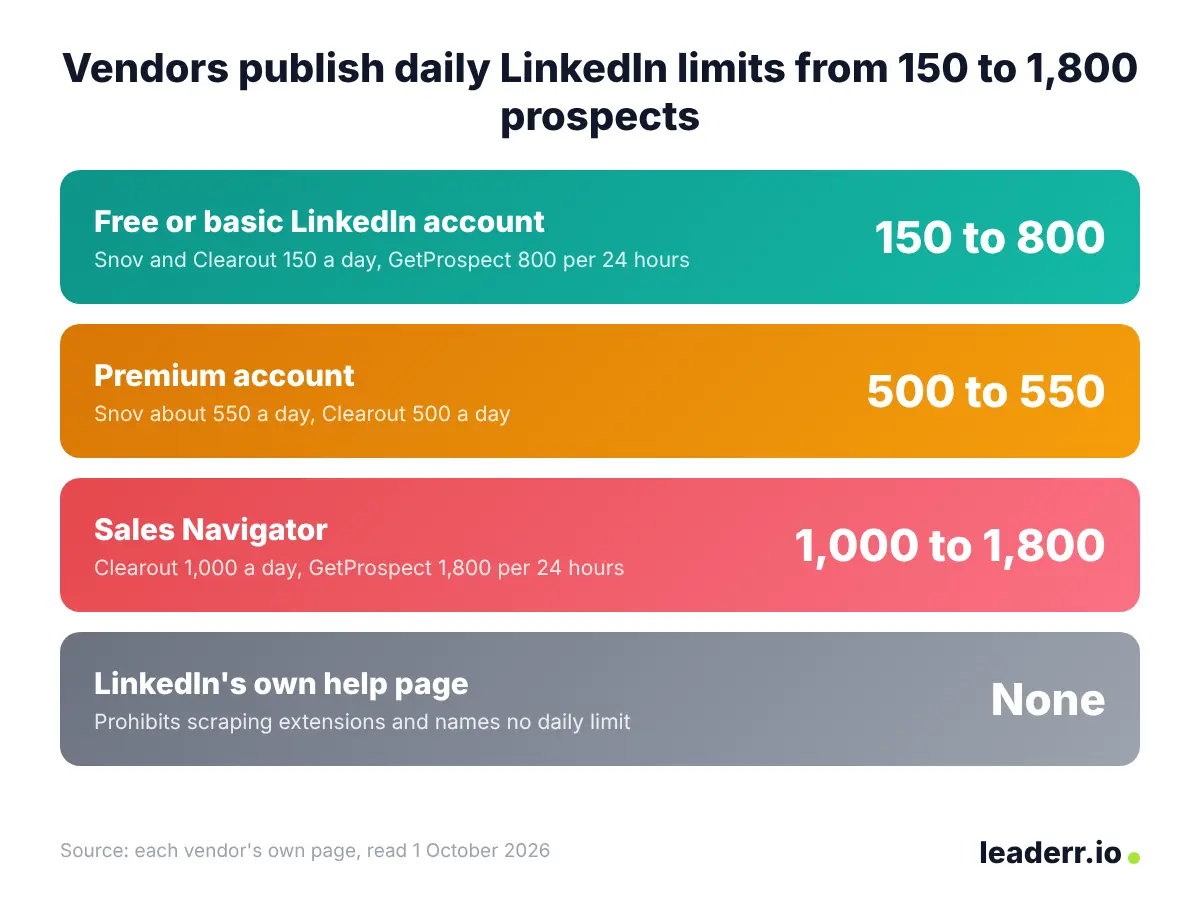
LinkedIn names none of these numbers, so each one is a vendor's estimate. The table lists the daily limits each page gives.
Vendor page | Free or basic LinkedIn | Premium | Sales Navigator |
|---|---|---|---|
Snov | About 150 a day | About 550 a day | Not listed |
Clearout | 150 a day | 500 a day | 1,000 a day |
GetProspect | 800 per 24 hours | Not listed | 1,800 per 24 hours |
All three present their limits as protection for your account. A vendor's limit is a vendor's choice, and staying under it doesn't change what Section 8.2 prohibits.
What has happened to tools and accounts
MarTech reported that LinkedIn's brand pages for two lead data providers, Apollo.io among them, vanished on 6 March 2025, and linked the removals to the Chrome extensions both companies run.
LinkedIn had not commented publicly when MarTech published on 8 May 2025. A tool that works today can lose its access later, so keep a lookup route that doesn't depend on one.
Which free LinkedIn email finder plan covers how many emails?
To find someone's email on LinkedIn for free, use the connected routes above or a free plan below. Free plans run on credits, and 50 a month is the common allowance.
The table lists each plan's free allowance, using figures from each vendor's own pricing or help page, read on 1 October 2026.
Tool | Free allowance | Detail |
|---|---|---|
Apollo | 50 email credits a month, 600 a year | Free export is capped at 25 records at a time |
Skrapp | 50 credits a month | One user on the free plan |
GetProspect | 50 email credits and 100 verification credits | Credits renew every 30 days; help page dated 5 December 2024 |
Hunter | 50 credits a month | 1 credit per email found, 0.5 per verification |
Worked example: how far 50 credits go
Say you want 60 verified work emails in a month. At Hunter's rates, finding 60 addresses costs 60 credits and verifying them costs 60 × 0.5 = 30 credits.
That is 90 credits, almost two free plans' worth. Check whether verification draws from the same credits on any plan you pick.
What to do with the address once you have it
Keep the found or guessed label next to the address.
Run a verification check on every address you didn't read straight from Contact info.
Send only the addresses that pass.
A check confirms the mailbox exists. How to verify an email address explains why a catch all domain, which accepts mail for any address, makes a pass weaker evidence.
Is using a LinkedIn email finder legal?
Two rule sets apply: LinkedIn's own terms, and the rules for the email you send afterward.
How hiQ v. LinkedIn ended
The best known scraping case, hiQ Labs v. LinkedIn, ended in a settlement.
Proskauer's summary of the December 2022 terms reports a $500,000 judgment against hiQ, a permanent injunction, and deletion of its scraped data and code, after a ruling that hiQ breached the User Agreement. This is general information, not legal advice.
What email rules apply once you have the address
The UK regulator's B2B marketing guidance says the electronic mail marketing rule doesn't apply to corporate subscribers, but sole traders and partnerships need consent.
UK GDPR still applies when an address identifies a person, and every email must show who sent it and give a valid opt out.
In the United States, CAN-SPAM sets the sending rules, and the answer on whether email finder tools are legal covers what it requires.
What to do when the lookup fails
A 2019 Hacker News thread on LinkedIn detecting browser extensions drew 510 points and 149 comments.
One commenter who said they were a former LinkedIn employee wrote that support replies to terminated accounts often named an email finder extension.
The table lists four failures and their fixes.
Symptom | Cause | Fix |
|---|---|---|
Contact info has no email | The member's visibility setting, or no connection | Use the not connected route or send a LinkedIn message |
Export has blank Email Address cells | The connection hasn't allowed their address in exports | Look those people up by name and company |
The extension stops returning results | A LinkedIn page change, a vendor outage or a restriction on the account | Switch to the name and company route and read LinkedIn's extension rule |
The address bounces | A guess, a stale record or a catch all domain | Check the label, then run the verification check again |
The export file is where blank emails show up most clearly.
Blank cells are normal and say nothing about whether the person has an address.
FAQs
Does LinkedIn show someone's email?
Only if the member allows it. The default setting shows the address to direct connections only, so a stranger's Contact info usually has no email.
Does Sales Navigator show email addresses?
Sales Navigator adds search filters and lead lists. The email still depends on the member's visibility setting, so a hidden address stays hidden.
Can I get the email of someone I'm not connected to?
Yes. Look it up from their name and company, label the result found or guessed, and verify it before you send.
Do I need an extension?
No. The lookup route needs only a name and a company domain. An extension saves clicks and adds the account risk described above.
Why did my search return nothing, and was I charged?
Billing depends on the plan. Hunter's pricing page counts 1 credit per email found, and other plans may charge for lookups that return nothing, so read the rule before you start.
Start with the route that touches LinkedIn least
Read Contact info or the export for connections. For everyone else, look up the name and company outside LinkedIn, label the result found or guessed, and verify it before you send.
Add an extension only if you accept the Section 8.2 risk and have a second route ready for the day the tool stops working.
Prices, limits, and vendor figures are current as of 1 October 2026.
About the author
Michael Doyle writes about B2B sales at Leaderr. He covers prospecting, cold outreach, sales data, and pipeline building, with a focus on what actually works for SDRs, founders selling on their own, and small sales teams. Connect with him on LinkedIn.